 Tusivo
A Tusivo app
PDF tools Alpha Windows 10 and 11
Pagjoro: PDF tools you own.
Free, open-source PDF tools for Windows. Read, mark up, fill forms, merge and split, redact, protect and sign, all on your own computer. An alternative to Adobe Acrobat Pro, with no subscription and no account.
Free. About 70 MB. No installer: you just run the file. Open source: github.com/Tusivo/Pagjoro
What it does
Read
- Zoom, fit to width or page, jump to any page
- Search with match case and whole words
- Thumbnails, outline, links and print
Mark up
- Highlight, underline and strike through
- Notes, freehand drawing, boxes and ovals
- Stamps, links, and add or change text and pictures on a page
Organize
- Rotate, delete, move and extract pages
- Merge files and split a document
- Insert pages, crop, drag thumbnails to reorder
- Bookmarks, page numbering styles and attachments
Forms
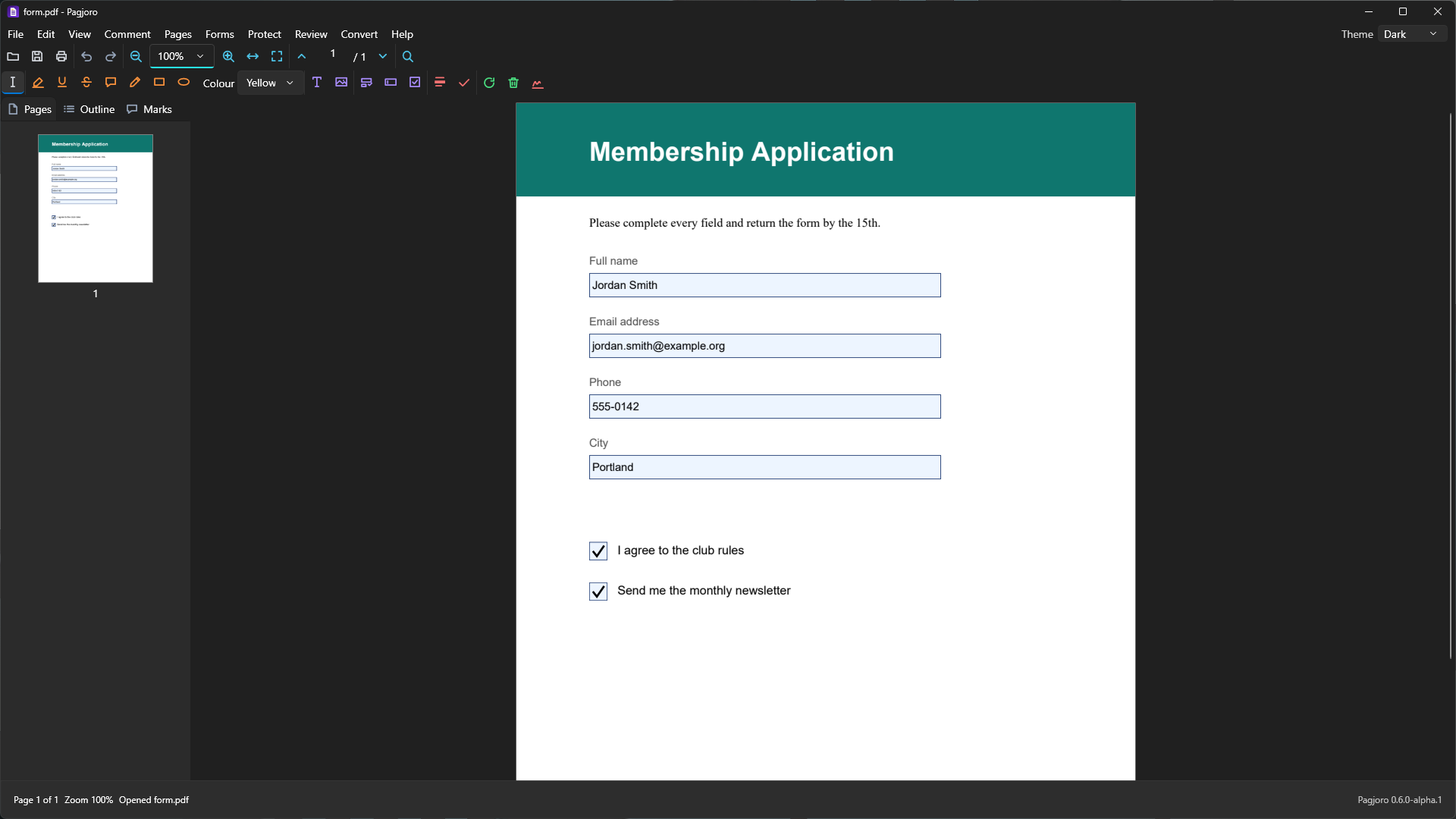
- Fill in text fields and check boxes
- Add your own fields to any page
- Export and import what was typed
Protect and sign
- Passwords and permissions
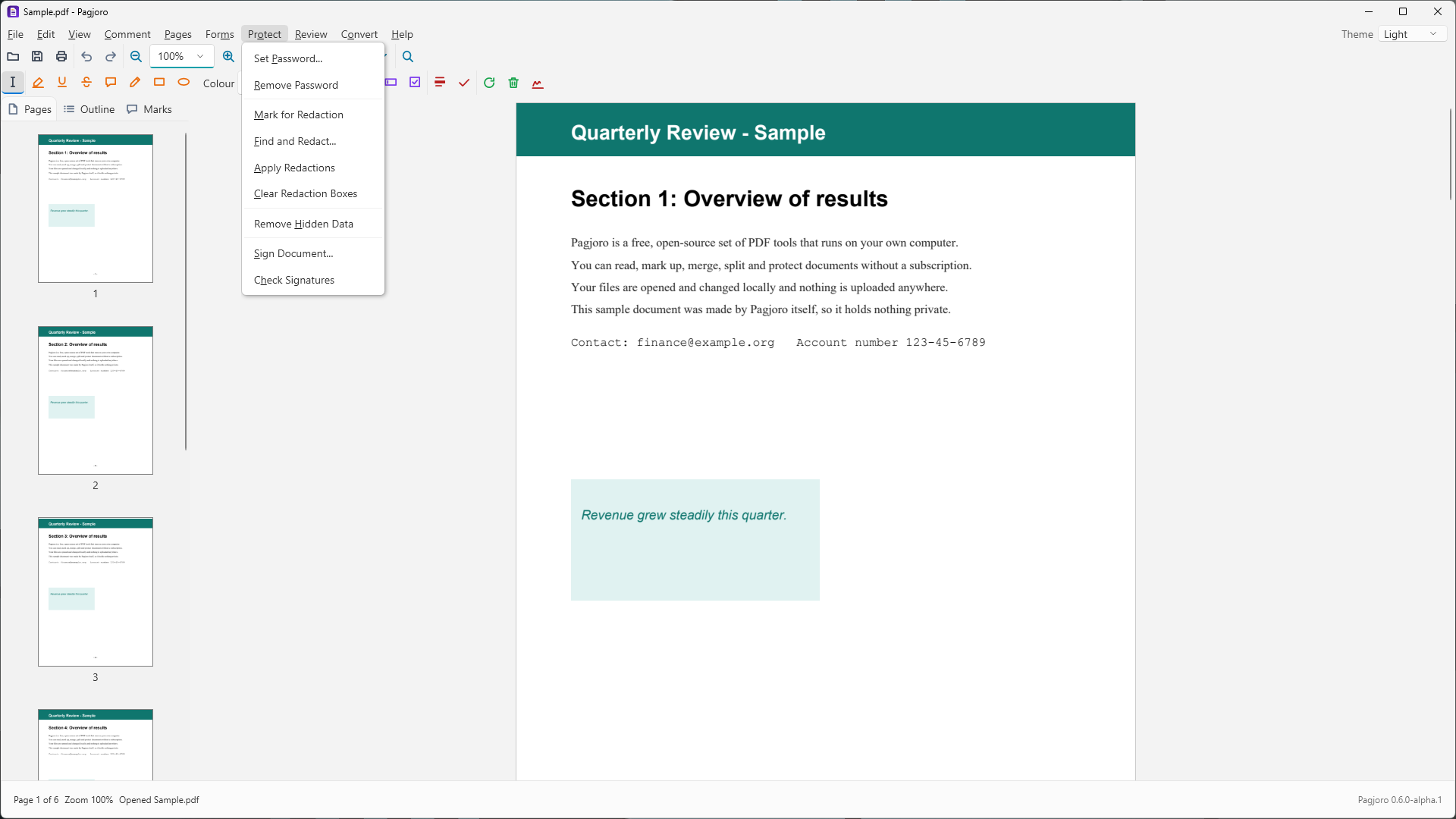
- True redaction that cuts only what is covered, including find-and-redact patterns
- Remove hidden data, sign with a certificate (with a trusted time stamp if you like), check signatures
Review and convert
- Compare two documents word by word
- Watermarks, headers, footers, page and Bates numbers
- Reduce file size; accessibility and print checks
- Export as images, a web page, Word, Excel or CSV
Scans
- Make scanned pages searchable with the text recognition built into Windows
- Scan straight to PDF, and turn Office files into PDF
Automate
- Save a list of steps and run it on a whole batch of files
- Unsaved work is kept safe in case the computer shuts down
Comfortable
- Light, Dark and Night themes
- Two pages side by side, and keyboard shortcuts
- Check for Updates only installs releases carrying Pagjoro's signature
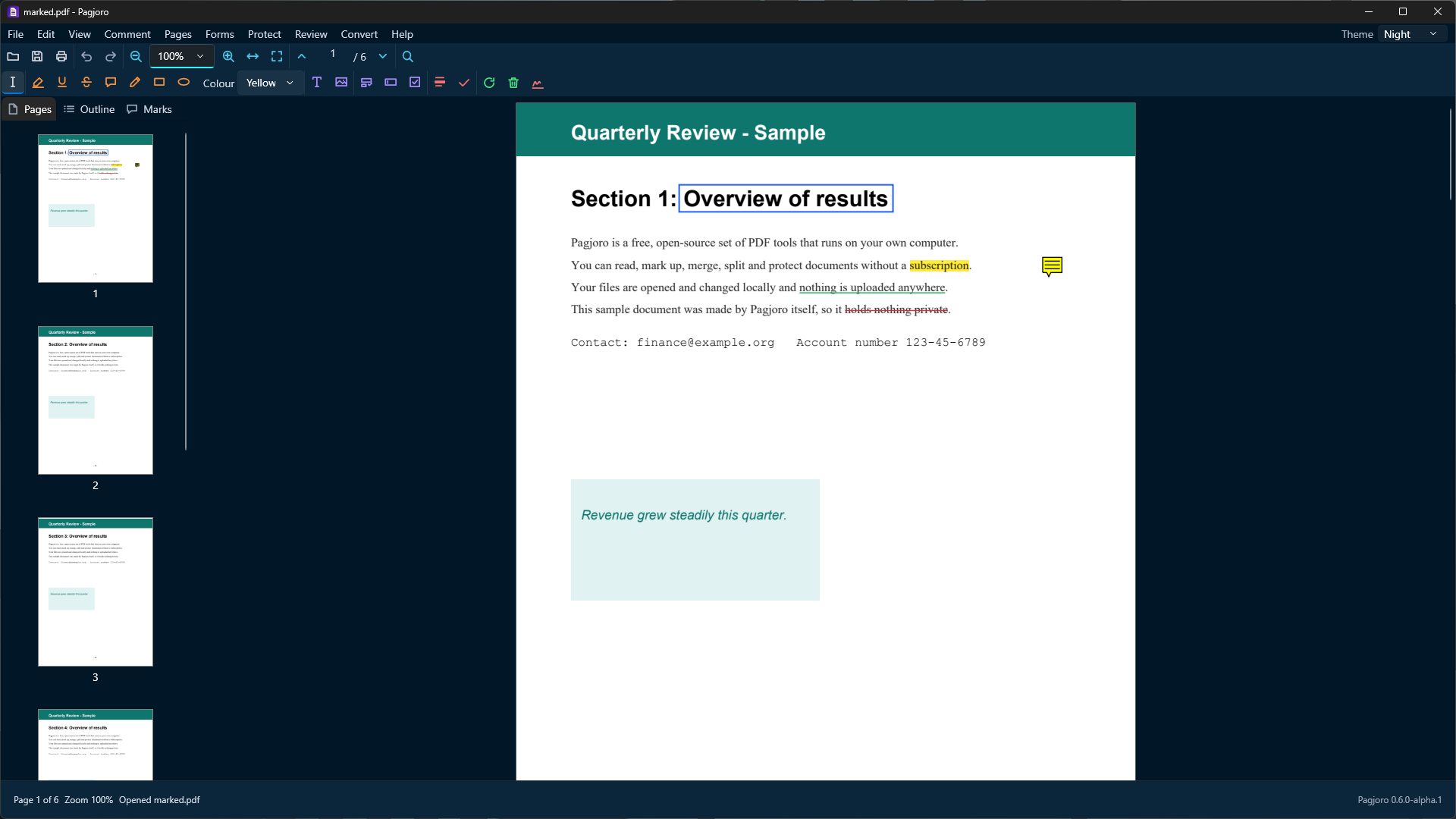
A look inside
Click a picture to see it full size.
Get started
- Download
Pagjoro.exefrom the releases page and save it somewhere you will remember. - Run it. Windows may say it protected your PC because the program is not code-signed with a Windows certificate yet. Choose More info, then Run anyway.
- Open a PDF from the File menu, or drag one onto the window.
Pagjoro opens and changes files on your computer only. It never uploads a document.
Please read: it is an alpha
Pagjoro works, but it is an early preview. It has not yet been used on many real documents and has not had an independent security review.
Keep a copy of any file you work on. When text is edited or part of a line is redacted, the line is re-set in a standard font, so check the result. Scanning, and turning Office files into PDF, depend on your scanner and on Office or LibreOffice being installed, and have had the least testing.
Questions
Is it really free?
Yes. Every feature is included and there is no paid version. It is open source under the GNU Affero General Public License 3.0 or later. If it helps you, you can buy me a coffee, but that is entirely optional and changes nothing.
Are my documents uploaded anywhere?
No. Files are opened and changed on your own computer, and Pagjoro sends no usage data. The only time it contacts the internet is when you click Check for Updates.
Can it replace Adobe Acrobat Pro?
For everyday work such as reading, marking up, filling forms, merging, splitting, redacting, signing and making scans searchable, it may. It cannot yet edit a page's layout the way a desktop publishing tool does, add accessibility tags, or convert to archival standards such as PDF/A, and it is an alpha, so try it alongside your current tools before you switch.
Is redaction really permanent?
Yes: applying redactions removes the letters and picture pixels underneath, then draws a black box, so the words cannot be copied out. The rest of the line is kept but re-set in a standard font, so check the result before you share the file. Pages whose content cannot be edited in place are turned into a picture with the boxes blacked out.
What about Mac and Linux?
Pagjoro is Windows only for now.
How do updates work?
Open Help in the program and choose Check for Updates. It installs a new version only if it carries Pagjoro's release signature, and it keeps your old copy as a backup next to the new one.
Can I check the source code?
Yes, all of it is at github.com/Tusivo/Pagjoro. You can also report problems there, or write to info@tusivo.com with a feature idea.